Migrating AWS Proton Terraform Templates to Bunnyshell
Native Terraform support with state management. Your TF modules run as-is.
Bunnyshell has native Terraform support. Your Terraform modules run as-is — no wrappers, no CLI scripting, no custom shell commands. Define a kind: Terraform component, point it at your module, and Bunnyshell handles init, plan, apply, state management, and output export automatically.
This is the cleanest migration path from AWS Proton. If your Proton templates used Terraform, the transition is direct: your modules stay in Git, your variables map to TF_VAR_* environment variables, and your outputs wire to other components through the same {{ components.X.exported.Y }} syntax used across all Bunnyshell component types.
How kind: Terraform Works
When you define a Terraform component in your bunnyshell.yaml, Bunnyshell executes the following lifecycle:
1Environment Create/Deploy
2  └── Terraform Component
3        ├── Clone Git repository
4        ├── cd into gitApplicationPath
5        ├── Inject TF_VAR_* environment variables
6        ├── terraform init (with configured backend)
7        ├── terraform plan
8        ├── terraform apply -auto-approve
9        └── Export outputs → available to other components
10
11Environment Delete
12  └── Terraform Component
13        ├── terraform init
14        └── terraform destroy -auto-approve
15
16Environment Stop (optional)
17  └── Run custom stop commands
18
19Environment Start (optional)
20  └── Run custom start commands
The Terraform binary runs inside a containerized runner on your Kubernetes cluster. You control the Terraform version by setting the runnerImage field — use hashicorp/terraform:1.5, hashicorp/terraform:1.7, or any custom image with Terraform installed.
Bunnyshell resolves component dependencies automatically. If your Application component references {{ components.database.exported.DB_ENDPOINT }}, Bunnyshell deploys the Terraform database component first, waits for it to complete, and then starts the application with the output values injected.
Step-by-Step Migration
Step 1: Inventory Proton Terraform Templates
List all your Proton environment and service templates that use Terraform. For each template, document:
- Template name and version — e.g.,
rds-postgres-tf-v1,vpc-networking-tf-v2 - Terraform module path — The directory containing
main.tf,variables.tf,outputs.tf - schema.yaml parameters — The inputs users provide when creating a Proton service instance
- Terraform outputs — What the module exports (endpoints, IDs, connection strings)
- State backend — How Proton managed Terraform state (typically an S3 bucket and DynamoDB lock table)
- Dependencies — Which service templates depend on which environment template outputs
1# Export Proton template details
2aws proton get-environment-template-version \
3  --template-name vpc-networking-tf \
4  --major-version 1 \
5  --minor-version 0
6
7# List service instances using Terraform templates
8aws proton list-service-instances \
9  --filters name=templateName,value=rds-postgres-tf
Step 2: Create bunnyshell.yaml with kind: Terraform
For each Terraform module, create a Terraform component:
1kind: Environment
2name: '{{ template.vars.environment_name }}'
3type: primary
4
5components:
6  - kind: Terraform
7    name: database
8    gitRepo: 'https://github.com/your-org/infrastructure.git'
9    gitBranch: main
10    gitApplicationPath: /terraform/rds
11    runnerImage: 'hashicorp/terraform:1.5'
12    deploy:
13      - 'terraform init -input=false'
14      - 'terraform apply -auto-approve -input=false'
15    destroy:
16      - 'terraform init -input=false'
17      - 'terraform destroy -auto-approve -input=false'
18    exportVariables:
19      - DB_ENDPOINT
20      - DB_PORT
21      - DB_NAME
Key fields:
gitApplicationPath— Points to the directory containing your Terraform module (main.tf,variables.tf, etc.). This becomes the working directory for all commands.runnerImage— The Docker image used to run Terraform. Match the version your Proton templates used.deploy— The commands to run on environment create. Typicallyterraform initfollowed byterraform apply.destroy— The commands to run on environment delete. Typicallyterraform initfollowed byterraform destroy.exportVariables— The Terraform outputs to make available to other components.
Step 3: Map schema.yaml to TF_VAR_* or Template Variables
Proton's schema.yaml defined the parameters users provided when creating a service instance. In Bunnyshell, you have two approaches to pass these values to Terraform:
Approach A: Direct TF_VAR_* mapping via environment variables
1components:
2  - kind: Terraform
3    name: database
4    environment:
5      TF_VAR_instance_class: '{{ template.vars.db_instance_class }}'
6      TF_VAR_engine_version: '{{ template.vars.db_engine_version }}'
7      TF_VAR_region: '{{ template.vars.region }}'
8      TF_VAR_environment: '{{ env.unique }}'
This maps Bunnyshell template variables to TF_VAR_* environment variables that Terraform reads automatically. Your variables.tf file does not need to change.
Approach B: Terraform .tfvars file generation
1deploy:
2  - |
3    cat > terraform.tfvars <<EOF
4    instance_class = "{{ template.vars.db_instance_class }}"
5    engine_version = "{{ template.vars.db_engine_version }}"
6    region         = "{{ template.vars.region }}"
7    environment    = "{{ env.unique }}"
8    EOF
9  - 'terraform init -input=false'
10  - 'terraform apply -auto-approve -input=false'
Both approaches work. Approach A is cleaner for simple variable mapping. Approach B is useful when you have complex variables (maps, lists) or want to keep a .tfvars file for debugging.
Proton schema.yaml to Bunnyshell templateVariables mapping:
1# Proton schema.yaml
2schema:
3  format:
4    openapi: "3.0.0"
5  types:
6    ServiceInput:
7      type: object
8      properties:
9        instance_class:
10          type: string
11          default: "db.t3.medium"
12        engine_version:
13          type: string
14          default: "15.4"
15        allocated_storage:
16          type: integer
17          default: 20
18
19# Bunnyshell templateVariables
20templateVariables:
21  db_instance_class:
22    type: string
23    default: 'db.t3.medium'
24    description: 'RDS instance class'
25  db_engine_version:
26    type: string
27    default: '15.4'
28    description: 'PostgreSQL engine version'
29  db_allocated_storage:
30    type: string
31    default: '20'
32    description: 'Storage in GB'
Bunnyshell template variables are always strings. If your Terraform variable expects an integer, the TF_VAR_* approach handles the conversion automatically. If you use the .tfvars approach, ensure you omit quotes for numeric values.
Step 4: Configure State Backend
Terraform state is critical. Proton managed state for you behind the scenes. With Bunnyshell, you have two options:
Option A: Bunnyshell-managed state (recommended for migration)
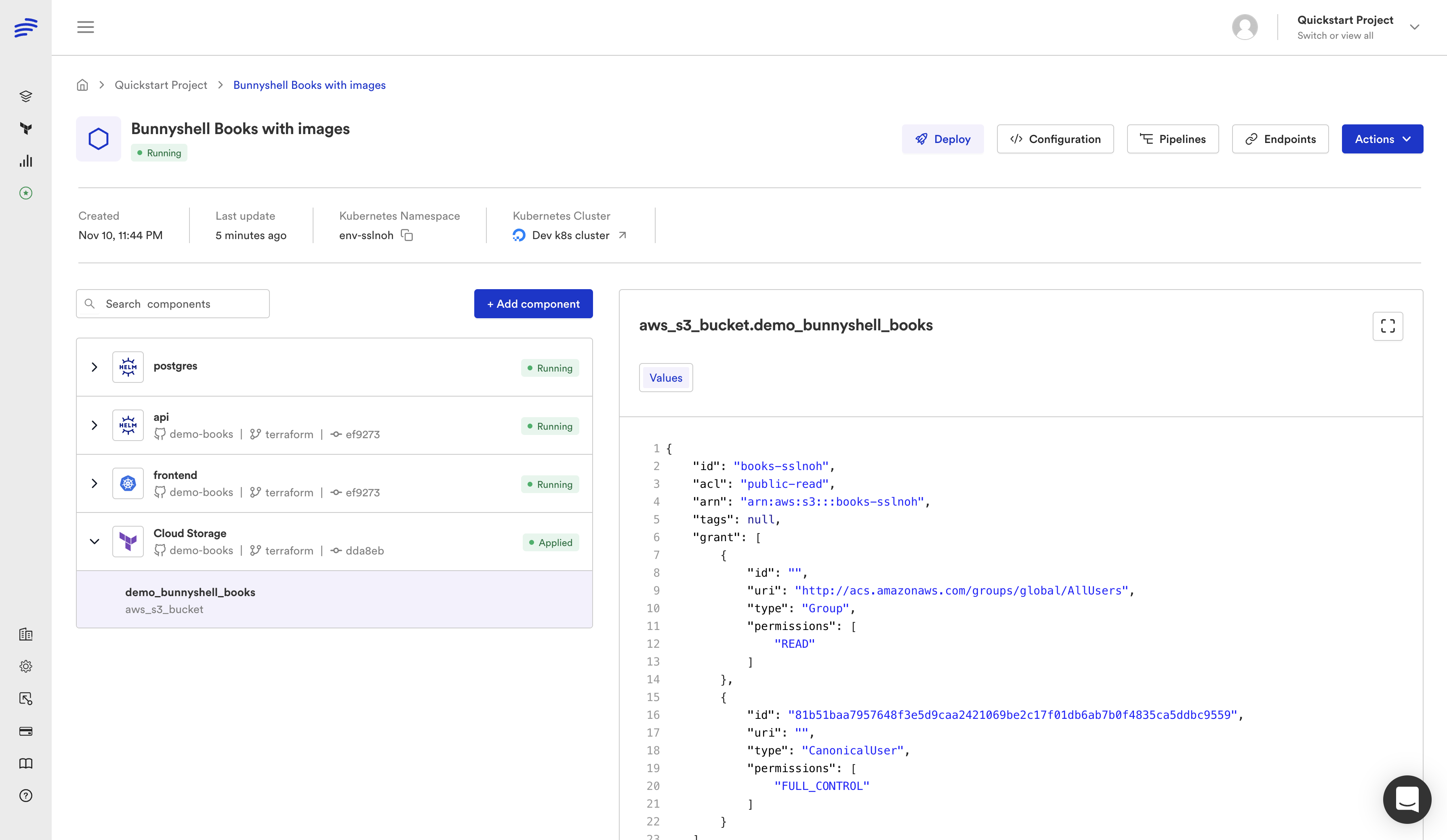
Bunnyshell provides an S3-based state backend scoped per Organization. State is isolated per environment, preventing conflicts between parallel deployments. No configuration required — Bunnyshell configures the backend automatically when you use kind: Terraform.
Option B: Bring your own backend
If you already have a state backend (S3 + DynamoDB, GCS, Azure Blob, Terraform Cloud), configure it in your Terraform module's backend block as usual:
1terraform {
2  backend "s3" {
3    bucket         = "your-terraform-state-bucket"
4    key            = "environments/${var.environment}/terraform.tfstate"
5    region         = "us-east-1"
6    dynamodb_table = "terraform-locks"
7    encrypt        = true
8  }
9}
To use a dynamic key per environment (recommended for ephemeral environments), override the backend configuration during init:
1deploy:
2  - |
3    terraform init -input=false \
4      -backend-config="key=environments/{{ env.unique }}/terraform.tfstate"
5  - 'terraform apply -auto-approve -input=false'
For ephemeral environments (per-PR), use a dynamic state key based on {{ env.unique }}. This ensures each ephemeral environment gets its own state file, and destroying the environment cleans up only that environment's resources.
Step 5: Export Outputs via exportVariables
Terraform outputs defined in your outputs.tf are automatically captured by Bunnyshell. List the output names in the exportVariables field:
1# outputs.tf
2output "DB_ENDPOINT" {
3  value = aws_db_instance.main.endpoint
4}
5
6output "DB_PORT" {
7  value = aws_db_instance.main.port
8}
9
10output "DB_NAME" {
11  value = aws_db_instance.main.db_name
12}
13
14output "DATABASE_URL" {
15  value = "postgresql://${aws_db_instance.main.username}:${var.db_password}@${aws_db_instance.main.endpoint}/${aws_db_instance.main.db_name}"
16}1# bunnyshell.yaml
2components:
3 - kind: Terraform
4 name: database
5 # ...
6 exportVariables:
7 - DB_ENDPOINT
8 - DB_PORT
9 - DB_NAME
10 - DATABASE_URLOther components reference these outputs with {{ components.database.exported.DATABASE_URL }}.
Terraform output names must match the exportVariables list exactly (case-sensitive). If your output is named db_endpoint (lowercase), list db_endpoint in exportVariables, not DB_ENDPOINT.
Step 6: Wire to Application Components
Connect your Terraform infrastructure outputs to application containers:
1components:
2  - kind: Terraform
3    name: database
4    gitRepo: 'https://github.com/your-org/infrastructure.git'
5    gitBranch: main
6    gitApplicationPath: /terraform/rds
7    runnerImage: 'hashicorp/terraform:1.5'
8    deploy:
9      - 'terraform init -input=false'
10      - 'terraform apply -auto-approve -input=false'
11    destroy:
12      - 'terraform init -input=false'
13      - 'terraform destroy -auto-approve -input=false'
14    environment:
15      TF_VAR_instance_class: '{{ template.vars.db_instance_class }}'
16      TF_VAR_environment: '{{ env.unique }}'
17    exportVariables:
18      - DATABASE_URL
19      - DB_ENDPOINT
20
21  - kind: Application
22    name: api
23    gitRepo: 'https://github.com/your-org/api.git'
24    gitBranch: main
25    gitApplicationPath: /
26    dockerCompose:
27      build:
28        context: .
29        dockerfile: Dockerfile
30      ports:
31        - '8080:8080'
32      environment:
33        DATABASE_URL: '{{ components.database.exported.DATABASE_URL }}'
34        APP_ENV: '{{ env.unique }}'
Full Example: Terraform Database + Application
Here is a complete bunnyshell.yaml migrating a Proton setup with a Terraform-managed RDS database and a containerized API service:
1kind: Environment
2name: '{{ template.vars.environment_name }}'
3type: primary
4
5templateVariables:
6  environment_name:
7    type: string
8    description: 'Environment name'
9  region:
10    type: string
11    default: 'us-east-1'
12    description: 'AWS region'
13  db_instance_class:
14    type: string
15    default: 'db.t3.medium'
16    description: 'RDS instance class'
17  db_engine_version:
18    type: string
19    default: '15.4'
20    description: 'PostgreSQL engine version'
21  db_allocated_storage:
22    type: string
23    default: '20'
24    description: 'Storage in GB'
25  db_password:
26    type: secret
27    description: 'Database master password'
28
29components:
30  - kind: Terraform
31    name: networking
32    gitRepo: 'https://github.com/your-org/infrastructure.git'
33    gitBranch: main
34    gitApplicationPath: /terraform/networking
35    runnerImage: 'hashicorp/terraform:1.5'
36    deploy:
37      - |
38        terraform init -input=false \
39          -backend-config="key=environments/{{ env.unique }}/networking.tfstate"
40      - 'terraform apply -auto-approve -input=false'
41    destroy:
42      - |
43        terraform init -input=false \
44          -backend-config="key=environments/{{ env.unique }}/networking.tfstate"
45      - 'terraform destroy -auto-approve -input=false'
46    environment:
47      TF_VAR_environment: '{{ env.unique }}'
48      TF_VAR_region: '{{ template.vars.region }}'
49    exportVariables:
50      - vpc_id
51      - subnet_ids
52      - security_group_id
53
54  - kind: Terraform
55    name: database
56    gitRepo: 'https://github.com/your-org/infrastructure.git'
57    gitBranch: main
58    gitApplicationPath: /terraform/rds
59    runnerImage: 'hashicorp/terraform:1.5'
60    deploy:
61      - |
62        terraform init -input=false \
63          -backend-config="key=environments/{{ env.unique }}/database.tfstate"
64      - 'terraform apply -auto-approve -input=false'
65    destroy:
66      - |
67        terraform init -input=false \
68          -backend-config="key=environments/{{ env.unique }}/database.tfstate"
69      - 'terraform destroy -auto-approve -input=false'
70    environment:
71      TF_VAR_vpc_id: '{{ components.networking.exported.vpc_id }}'
72      TF_VAR_subnet_ids: '{{ components.networking.exported.subnet_ids }}'
73      TF_VAR_security_group_id: '{{ components.networking.exported.security_group_id }}'
74      TF_VAR_instance_class: '{{ template.vars.db_instance_class }}'
75      TF_VAR_engine_version: '{{ template.vars.db_engine_version }}'
76      TF_VAR_allocated_storage: '{{ template.vars.db_allocated_storage }}'
77      TF_VAR_db_password: '{{ template.vars.db_password }}'
78      TF_VAR_environment: '{{ env.unique }}'
79    exportVariables:
80      - DATABASE_URL
81      - db_endpoint
82      - db_instance_id
83
84  - kind: Application
85    name: api
86    gitRepo: 'https://github.com/your-org/api.git'
87    gitBranch: main
88    gitApplicationPath: /
89    dockerCompose:
90      build:
91        context: .
92        dockerfile: Dockerfile
93      ports:
94        - '8080:8080'
95      environment:
96        DATABASE_URL: '{{ components.database.exported.DATABASE_URL }}'
97        NODE_ENV: 'production'
98        APP_ENV: '{{ env.unique }}'
99
100  - kind: Application
101    name: worker
102    gitRepo: 'https://github.com/your-org/api.git'
103    gitBranch: main
104    gitApplicationPath: /
105    dockerCompose:
106      build:
107        context: .
108        dockerfile: Dockerfile.worker
109      environment:
110        DATABASE_URL: '{{ components.database.exported.DATABASE_URL }}'
111        WORKER_MODE: 'true'
State Management Options
State management is one area where Bunnyshell offers more flexibility than Proton.
Bunnyshell-Managed State
The simplest option. Bunnyshell provisions an S3 backend scoped to your Organization. Each environment gets an isolated state file. You do not need to configure anything — just omit the backend configuration in your Terraform module, or let Bunnyshell override it.
Best for: Teams starting fresh or migrating from Proton's managed state. No infrastructure to set up.
Bring Your Own Backend
If you already have a state backend — an S3 bucket with DynamoDB locking, GCS, Azure Blob Storage, or Terraform Cloud — keep using it. Configure the backend in your Terraform module and override the state key per environment:
1deploy:
2  - |
3    terraform init -input=false \
4      -backend-config="key=bunnyshell/{{ env.unique }}/terraform.tfstate"
5  - 'terraform apply -auto-approve -input=false'
Best for: Teams with existing state management infrastructure and compliance requirements.
Migrating State from Proton
If you need to preserve existing Terraform state from Proton-managed deployments:
- Export the state file from Proton's backend (usually an S3 bucket created by Proton)
- Import it into your Bunnyshell-managed or custom backend using
terraform state push - Verify with
terraform plan— it should show no changes if the state matches the deployed infrastructure
1# Download state from Proton's backend
2aws s3 cp s3://proton-state-bucket/your-template/terraform.tfstate ./proton-state.tfstate
3
4# Import into new backend
5terraform init -backend-config="key=environments/production/terraform.tfstate"
6terraform state push proton-state.tfstate
7
8# Verify — should show no changes
9terraform plan
State migration is only needed for long-lived (production) environments. For ephemeral environments, start fresh — each PR gets a new environment with new state.
Advanced Configuration
Custom Runner Images
If your Terraform modules require additional tools (AWS CLI, jq, custom providers), build a custom runner image:
1FROM hashicorp/terraform:1.5
2
3RUN apk add --no-cache \
4    aws-cli \
5    jq \
6    python3 \
7    bash
8
9# Pre-install custom providers if needed
10COPY .terraformrc /root/.terraformrc
Reference it in your component:
1components:
2  - kind: Terraform
3    name: database
4    runnerImage: 'your-registry.com/terraform-runner:1.5-custom'
Destroy Hooks and Resource Protection
For production environments, you may want to prevent accidental destruction of critical resources. Use Terraform's prevent_destroy lifecycle rule in your modules:
1resource "aws_db_instance" "main" {
2  # ...
3  lifecycle {
4    prevent_destroy = true
5  }
6}
For Bunnyshell-specific protection, configure the environment to skip destroy for certain components:
1components:
2  - kind: Terraform
3    name: database
4    destroy:
5      - |
6        echo "Skipping destroy for production database"
7        echo "To destroy manually: terraform destroy -target=aws_db_instance.main"
Parallel Deployment
By default, Bunnyshell deploys components that have no dependencies on each other in parallel. If your networking and monitoring Terraform modules are independent, they deploy simultaneously:
1components:
2  - kind: Terraform
3    name: networking
4    # No dependencies — deploys in parallel with monitoring
5    exportVariables:
6      - vpc_id
7
8  - kind: Terraform
9    name: monitoring
10    # No dependencies — deploys in parallel with networking
11    exportVariables:
12      - grafana_url
13
14  - kind: Terraform
15    name: database
16    # Depends on networking — waits for it to complete
17    environment:
18      TF_VAR_vpc_id: '{{ components.networking.exported.vpc_id }}'
19
20  - kind: Application
21    name: api
22    # Depends on database — waits for it to complete
23    dockerCompose:
24      environment:
25        DATABASE_URL: '{{ components.database.exported.DATABASE_URL }}'
In this example, networking and monitoring deploy in parallel. Once networking completes, database starts. Once database completes, api starts. Bunnyshell builds the dependency graph from {{ components.X.exported.Y }} references automatically.
Testing Your Migration
Before cutting over from Proton:
-
Deploy a test environment — Create an environment from your template. Verify all Terraform modules apply successfully. Check
terraform planoutput for unexpected changes. -
Verify state — Confirm state files are created in the correct backend. For Bunnyshell-managed state, check the Bunnyshell dashboard. For custom backends, check your S3 bucket.
-
Test output wiring — Verify that application components receive the correct database endpoints, API URLs, and other outputs from Terraform components.
-
Test destroy — Delete the environment and confirm
terraform destroyruns successfully. Check AWS to verify all resources are cleaned up. -
Test ephemeral environments — Open a PR and verify an ephemeral environment is created with its own isolated state. Close the PR and verify destruction.
1# Create test environment
2bns environments create \
3  --name "tf-migration-test" \
4  --template-id tmpl_xxx \
5  --var environment_name=tf-migration-test \
6  --var db_instance_class=db.t3.micro \
7  --var db_password=test-password-123
8
9# Monitor deployment
10bns environments show --id env_xxx
11
12# Verify Terraform outputs
13bns components show --id comp_xxx
14
15# Test full lifecycle
16bns environments stop --id env_xxx
17bns environments start --id env_xxx
18bns environments delete --id env_xxx
Summary
The Terraform migration path from Proton is the most direct because Bunnyshell treats Terraform as a first-class component type. Your modules stay in Git, untouched. Your variables map to TF_VAR_* environment variables. Your outputs wire to other components. State is managed automatically or through your existing backend.
The result is a platform that does everything Proton did — and adds ephemeral environments, cost management, Git ChatOps, and a unified interface for Terraform, CloudFormation, Helm, and containerized applications in the same environment.
Need hands-on migration support?
Our solutions team provides dedicated migration assistance. VIP onboarding with a solution engineer, private Slack channel, and step-by-step guidance.
Frequently Asked Questions
Does Bunnyshell manage Terraform state?
Yes. Bunnyshell provides an S3-based state backend scoped per Organization. You can also configure your own backend (S3, GCS, Azure Blob, etc.) if you prefer.
Do I need to change my Terraform modules?
No. Your TF modules run inside a Terraform component as-is. Bunnyshell runs terraform init and terraform apply inside a containerized runner on your cluster.
How do I map Proton schema.yaml to Terraform variables?
Map each schema.yaml parameter to either a TF_VAR_* environment variable or a Bunnyshell template variable referenced as TF_VAR_name: {{ template.vars.name }}. Both approaches work.
Can I use a custom Terraform version?
Yes. Set the runnerImage field to any Docker image with Terraform installed. For example: hashicorp/terraform:1.5 or your own custom image.